Features

Sextant records your calls on your Mac and turns them into a transcript, highlights and a summary you can check against the recording.

Recording

Sextant records the call from your Mac: your voice, the other side and what is on screen, and keeps you informed while it does.
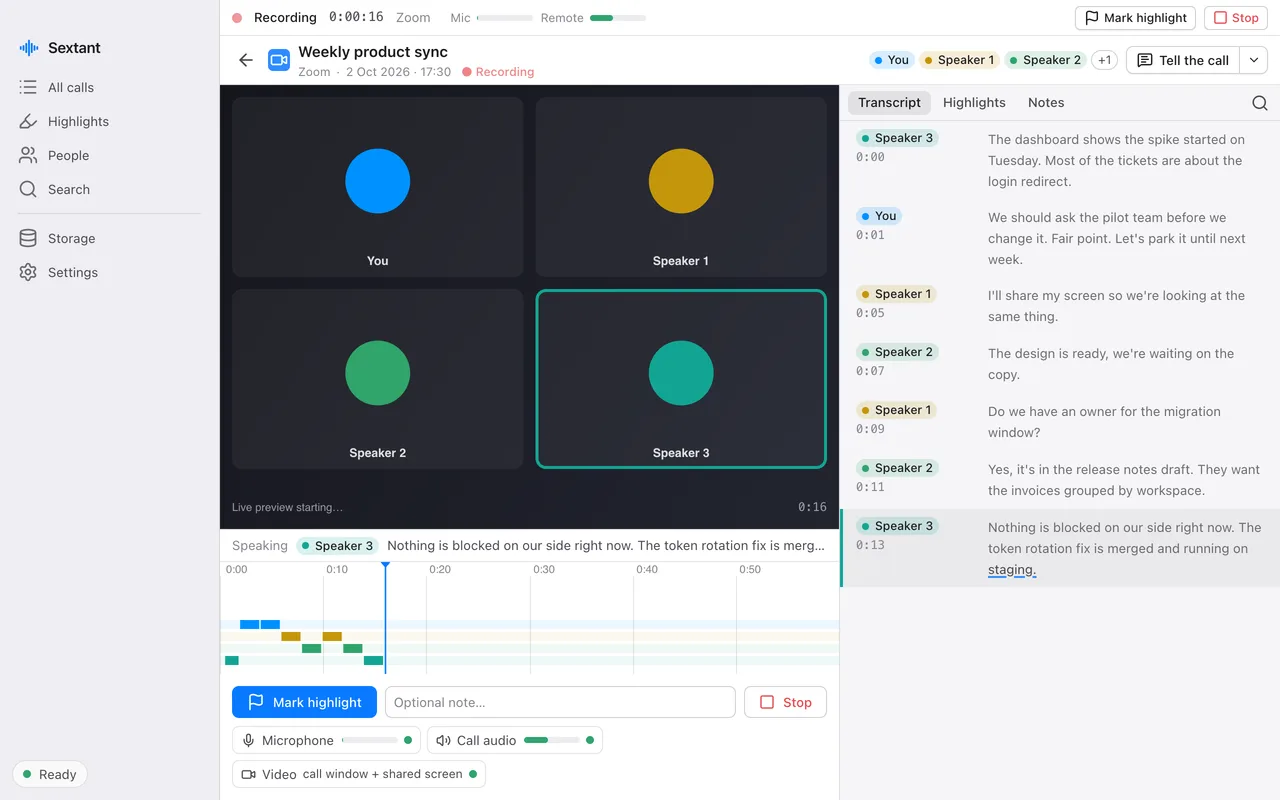
A call being recorded: the transcript appears as people speak, and indicators for the microphone, the call audio and the video show that each one is being recorded.
Recording: the transcript as it is spoken, and the state of each track. Sample data.

It asks first

When a call starts in Zoom, Microsoft Teams, Slack, Discord, FaceTime, WhatsApp, Telegram, Webex or a browser, a small window asks whether to record. Nothing is captured until you click Record. Each app can be set to Ask, Always or Never.

Two tracks and the picture

Your microphone and the call audio are recorded separately, so what you said is always yours. The video is the call window and, while you present, the screen you share; never another app.

Health you can see

While recording, indicators show that the microphone, the call audio and the video are coming in. If one stops, you are told during the call, and the call page lists what is missing afterwards.

Safe against crashes and device changes

Files are written in small pieces as the call goes, so a crash costs at most the last few seconds. Recording follows your audio devices when headphones connect or disconnect, and keeps sound and picture in sync.

Tell the call

One click copies a short message saying you are recording, to paste in the call chat, and marks the call as announced. Sextant never types into the call app itself.

In person and imported

Record a meeting in a room with the microphone only, every voice told apart. Or drop an audio or video file on the window to get the same transcript, speakers and highlights.

Transcript and speakers

A transcript you can trust enough to quote, with the right names on it.
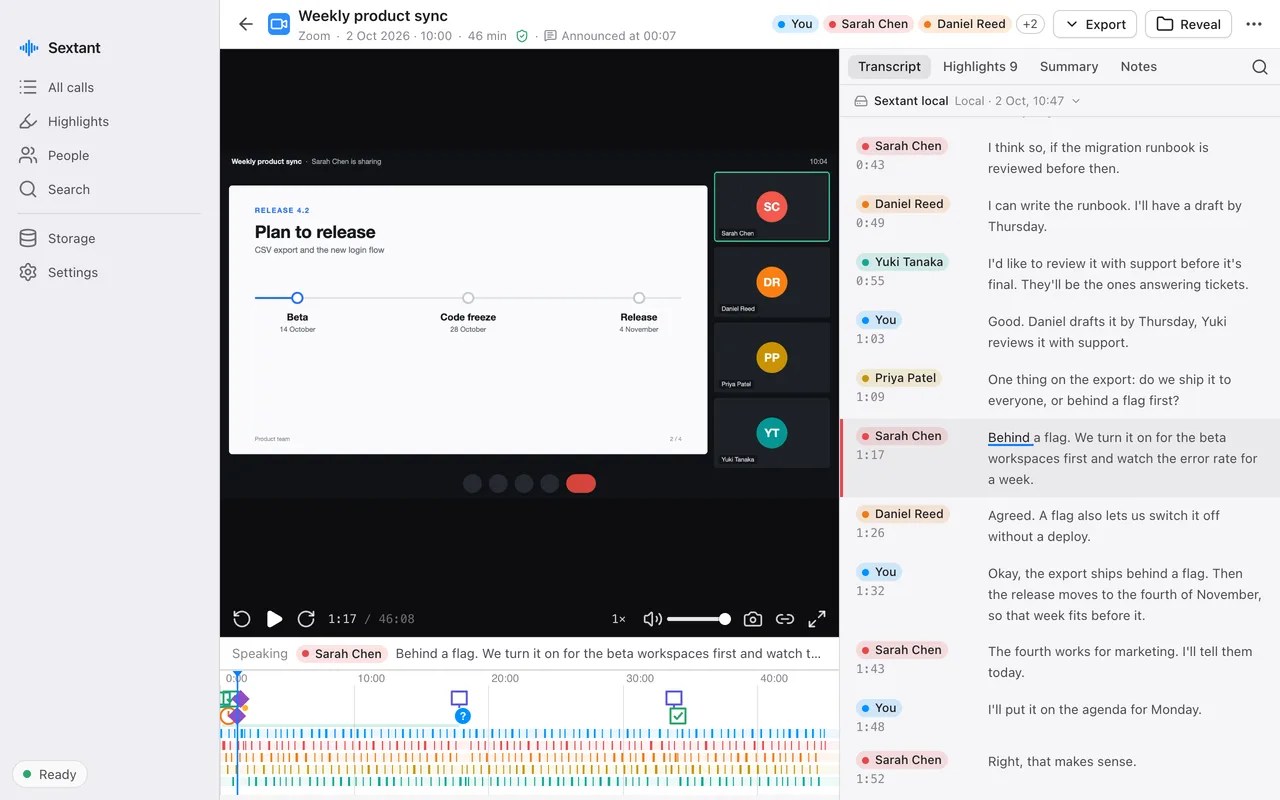
A call's transcript beside the video: each turn has the speaker's name and a timestamp, and the word being played is underlined.
A call's transcript beside the recording. Sample data.

Live, then refined

The transcript appears while the call runs. After the call a second, more careful pass on your Mac improves the text and the speakers.

Every word is a link

Click any word to play the call from there. The word being spoken is underlined as it plays.

Names that stick

Name a voice once and Sextant recognises it in later calls as “Probably Sarah Chen”, with a match score, until you confirm. Wrong guesses are fixed in two clicks, with Undo.

Your vocabulary

Add product names, people and acronyms so the recognizer spells them right. Nothing is corrected afterwards by hand-written rules; the recognizer decides with the audio.

Editable

Fix a word, split or merge a turn, or move it to another speaker.

English

Sextant transcribes English. Other languages are not supported yet.

Highlights

The moments you would otherwise have to find again: decisions, commitments, open questions, dates.
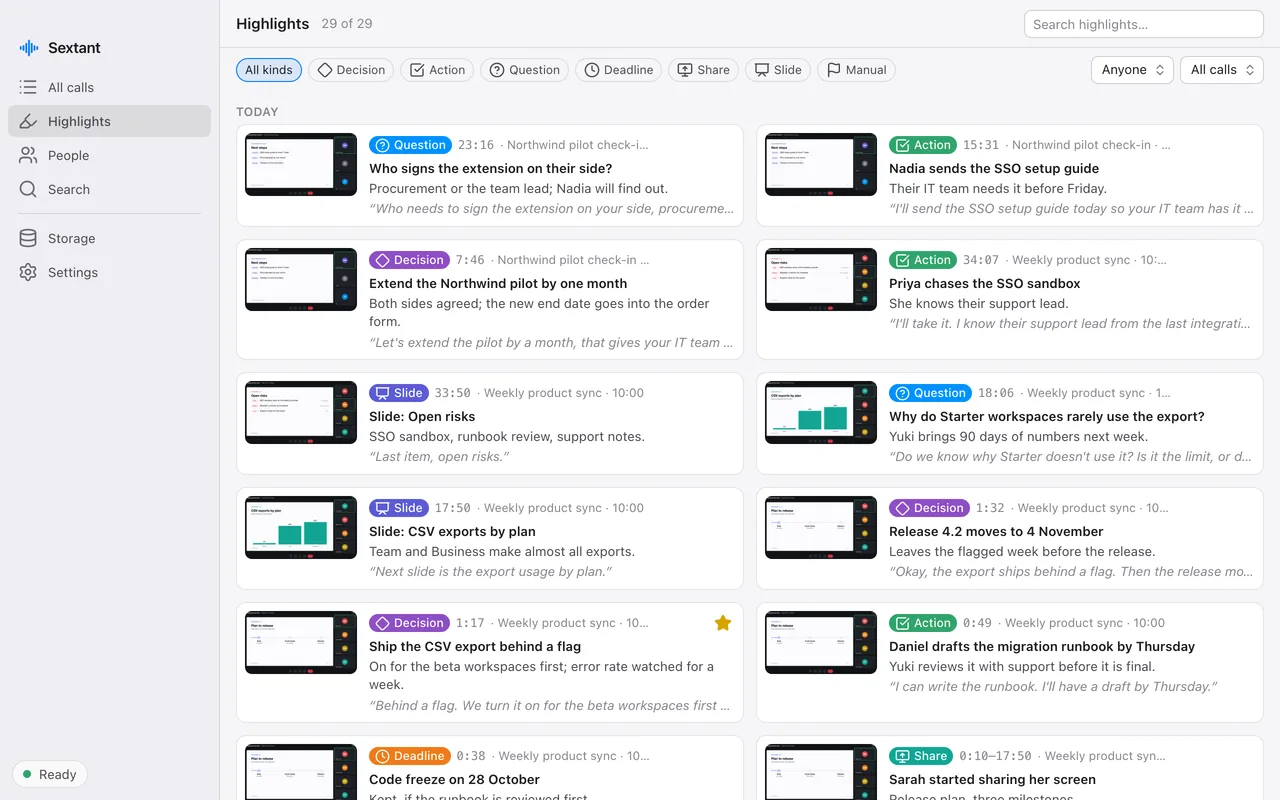
Highlights from several calls: decisions, action items, questions and slides, each with a picture of the screen, the time in the call and the quote.
Highlights from several calls. Sample data.

Found for you

After the call, a language model on your Mac reads the transcript and marks decisions, action items, questions and deadlines.

Seen on screen

When someone starts sharing or the slide changes, Sextant notes it from the video.

Marked by you

Press a shortcut (⌃⌥H by default) or the menu bar button during the call, with an optional note.

With the picture

Every highlight keeps a picture of the screen at that second, the quote and the time. Click it to play the moment.

Across all calls

The Highlights page gathers them from every call, by day, filtered by kind, person or call.

Summaries you can check

A summary is only useful if you can trust it. Sextant shows where every line came from.
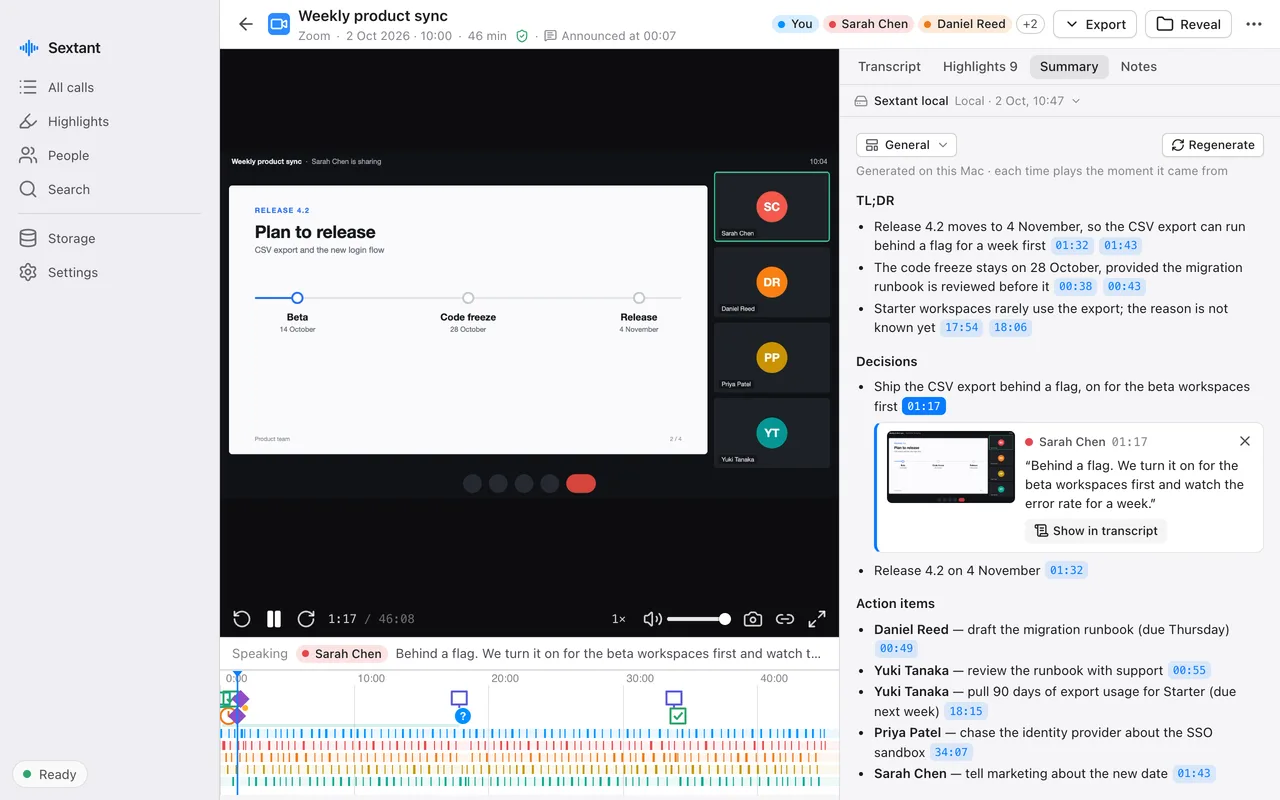
A finished call in Sextant: the recorded call window with a shared slide, a timeline of who spoke when with highlight markers, and the summary. One summary line is open and shows the quote it came from, who said it, at 01:17, with a picture of the screen at that moment.
A summary line opened to show its evidence. Sample data.

Cited, line by line

Each line ends with the times it came from. Click one to play the moment and see the quote, who said it and the screen at that second.

Checked against the transcript

Sextant compares every line with the moments it cites. A line it cannot support is marked “not verified in transcript”, so you know which ones to read twice.

Templates

General, 1:1, Standup, Sales or customer call and Interview are built in. Write your own, and choose a template per app.

Your notes count

Notes typed during the call shape the summary written after it, in a section of their own.

Library, storage and export

Recordings with video take space, and notes belong where you keep your other notes. Both are handled.
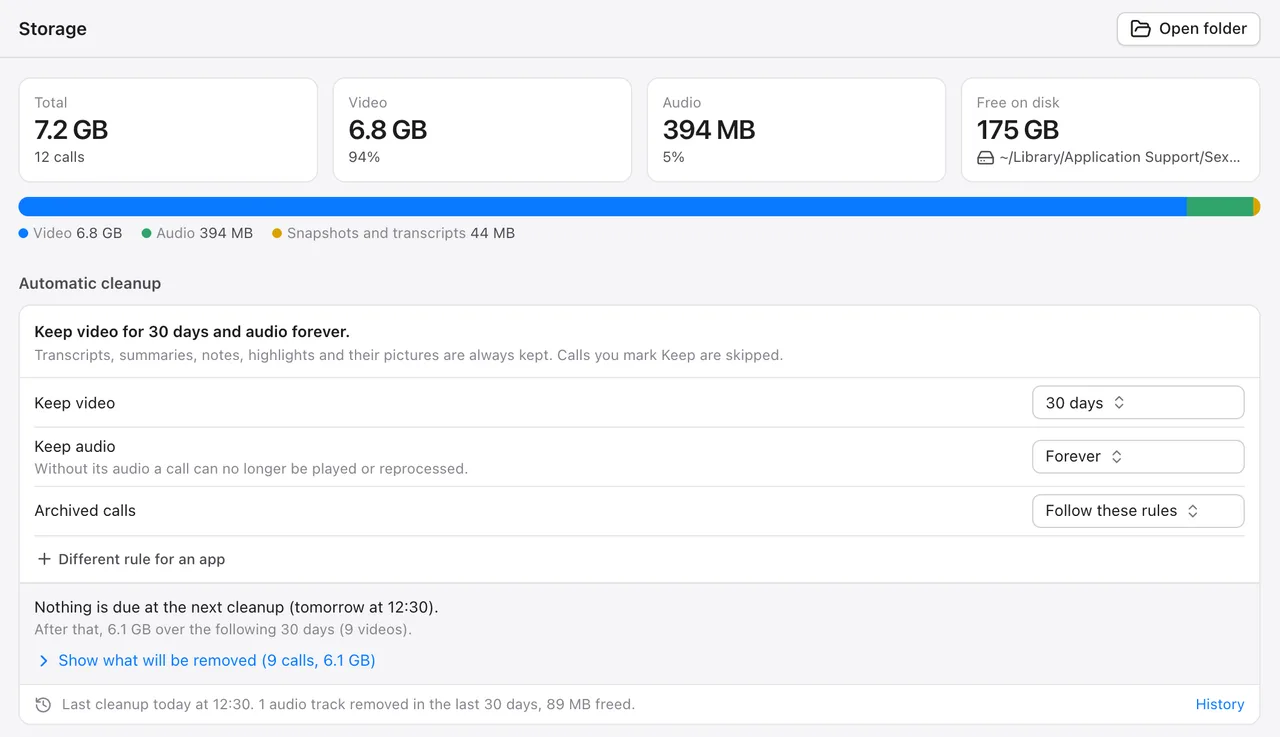
The Storage page: space used by video, audio and the rest, and an automatic cleanup rule that keeps video for 30 days and audio forever, with what the next cleanup will free.
Storage and automatic cleanup. Sample data.

A library you can scan

Calls are listed by day with a one-line summary, the app, the people and the number of highlights. Filter by app, person, date or highlights.

Storage under control

See how much each call uses. Cleanup rules remove video or audio after the number of days you choose, per app if you like; transcripts, summaries, notes and highlight pictures are always kept. Nothing is removed without a preview.

Export

Markdown, JSON or SRT subtitles for any call. Automatic export writes a Markdown note for every finished call into a folder you choose, and leaves notes you have edited there alone.

Plain files

Each call is a folder with its audio, video, transcript, summary and highlight pictures, in your Library folder.

Works around your battery

With “Process calls only when plugged in”, the work after a call waits for the charger. Recording itself is never delayed.

Third-party transcription, if you want it

Off by default. For calls where you want a second transcript from a cloud service, Sextant can send the audio to ElevenLabs with your own API key.
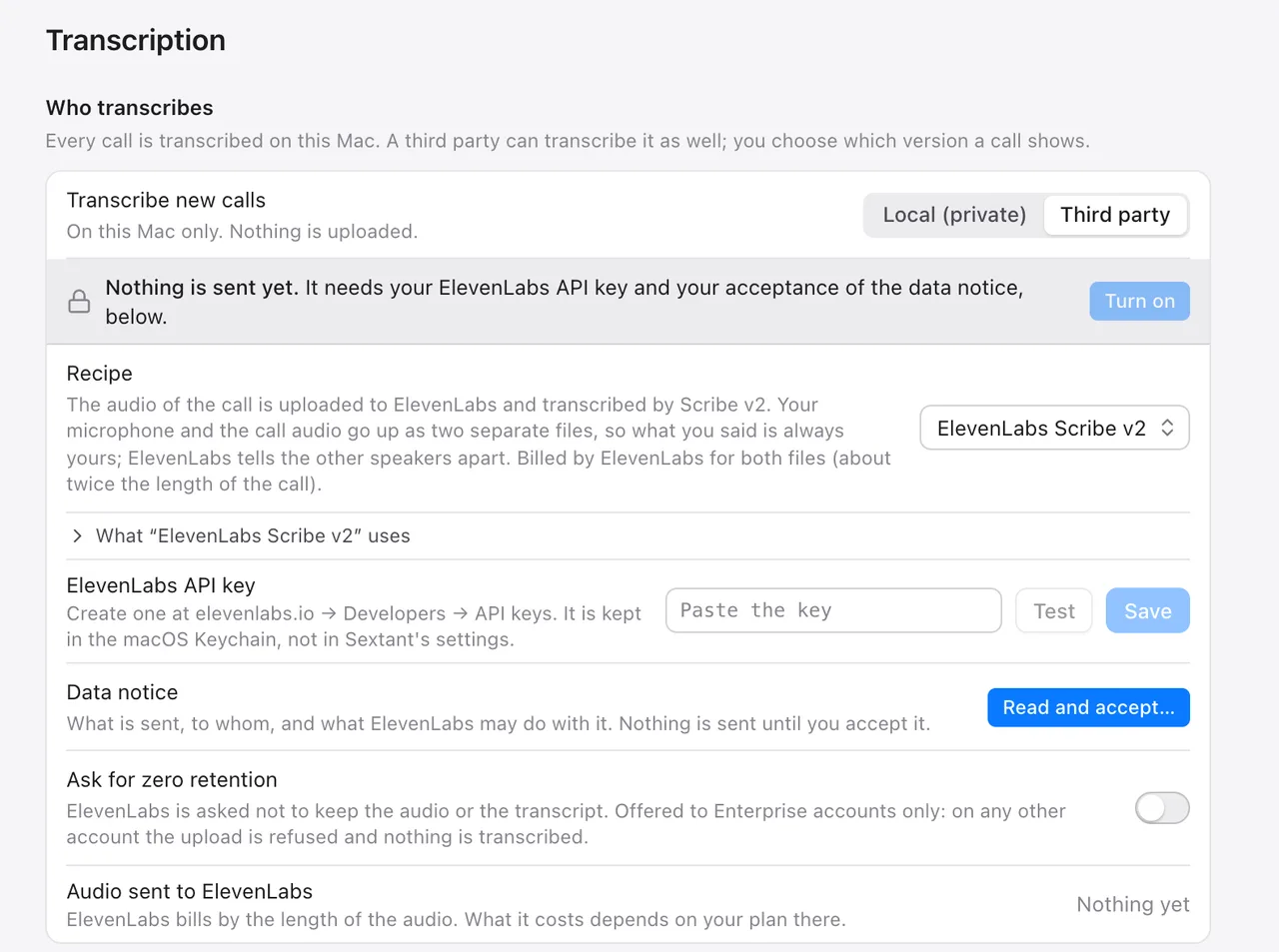
Transcription settings with Third party selected: nothing is sent until an ElevenLabs API key is stored and the data notice is accepted; an option asks for zero retention.
Nothing is sent until a key is stored and the data notice is accepted. Sample settings.

Your key, your account

The API key stays in the macOS Keychain. ElevenLabs bills you directly for the audio it transcribes; Settings shows how much audio was sent each month.

Only audio

Your microphone and the call audio are uploaded after the call, with your vocabulary terms if you have any. Never video, screenshots, notes, names or summaries.

Nothing lost

The transcript made on your Mac is always kept. You choose which version a call shows, and can compare them side by side.

What exactly is sent

Current limits

What Sextant does not do yet, so you know before you rely on it.

  • English only.
  • Macs with Apple silicon only; Intel Macs are not supported.
  • On very long calls (tested at 130 minutes) the written summary does not yet cover the end of the call. The transcript, speakers and highlights do.
  • Speaker recognition has been measured on meeting-room recordings; its accuracy on call audio has not been measured yet.
  • No calendar integration: call titles come from the call app, and names from your own naming.
